


How to Generate a Community Report on Outrider
In this article, you'll learn how to create instant reports on Outrider for any technology. These reports are a valuable tool for identifying trends, tracking technology funding, and staying updated on the latest news.
Step 1: Navigate to the Reports tab on the left sidebar to access the reports section.
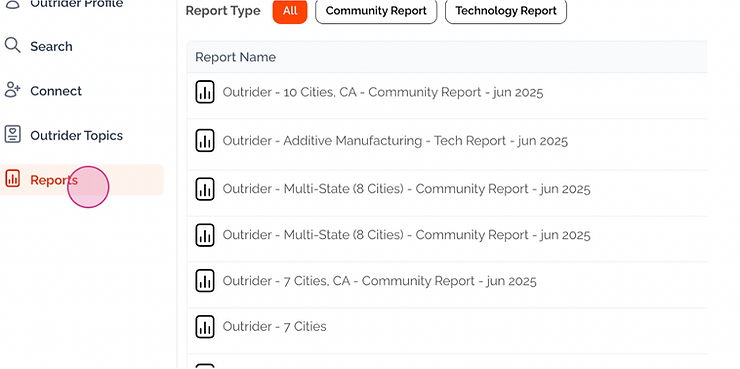
Here, you'll find all your past reports. You're free to edit, download, or share them.
Step 2: Start by creating a new report. Click on New Report.

Step 3: Type in the technology for which you want to make the report. In this example, we are making a report about additive manufacturing

Step 4: Select the sources you want to include in your report.

Step 5: Click on Generate to create your report.

Your report will include a wealth of information, such as the number of federal contracts awarded, active contracts, top contracts, and product categories for each year. It also provides trends, funding over time, company locations, and more.

Step 6: Customize your report. You can edit and modify the time period you want to cover.
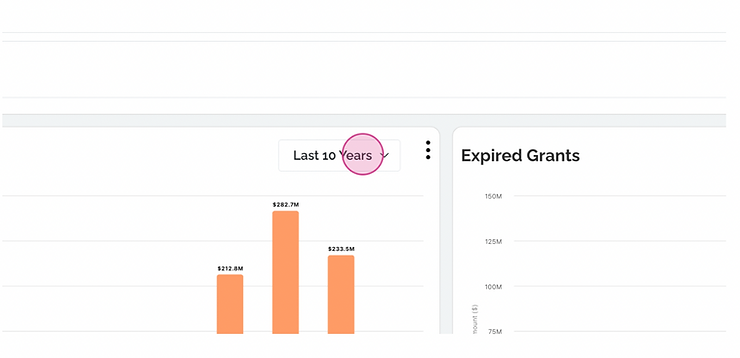
You also have the option to hide certain sections if you don't want them included in the report. You can unhide these sections by clicking the eye icon if you change your mind.

Step 7: Once you're satisfied with your report, download it as a PDF.
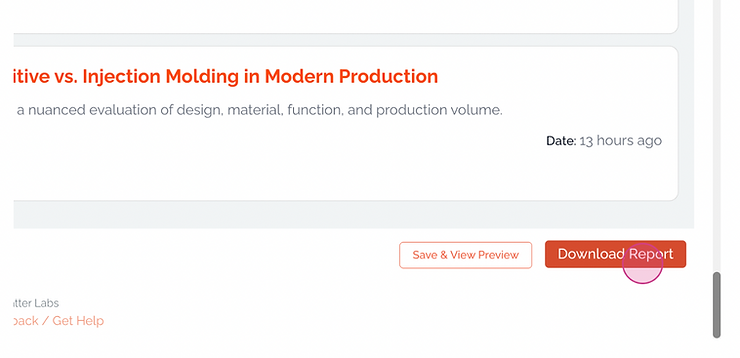
You're now ready to share your report with your team or anyone else who might find it useful. For a different viewing experience, Outrider also offers a dark mode.

And that's it! You've successfully created and customized a report on Outrider.


